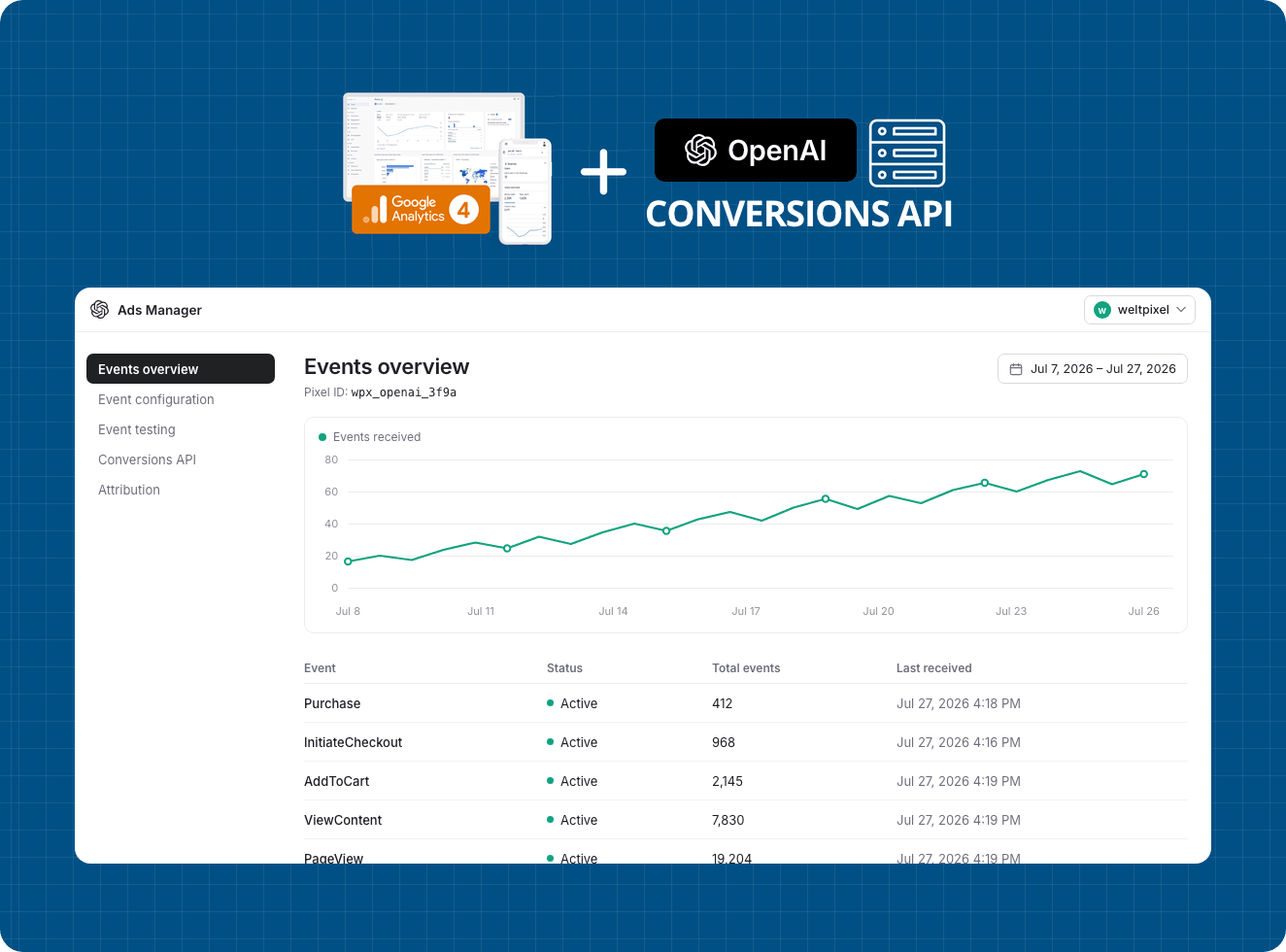
OpenAI Ads Conversions API Addon for Google Analytics 4 PRO
Requires the Google Analytics 4 PRO extension.
OpenAI Ads Conversions API Integration for Magento 2
Connect your Magento 2 store to OpenAI Ads with our OpenAI Ads Conversions API integration. This addon establishes a direct, secure server-to-server connection between your eCommerce data and OpenAI's advertising platform, enabling accurate conversion tracking for campaigns that reach shoppers inside ChatGPT.
Built specifically for Magento 2 merchants, this server-side implementation ensures reliable event delivery even in environments with strict privacy controls, Intelligent Tracking Prevention, or ad blockers. As advertising inside AI assistants takes shape, your conversion data stays accurate, resilient, and ready to power optimization.
Key Benefits of OpenAI Ads CAPI Integration
Advanced Conversion Tracking
Bridge the OpenAI Ads pixel and the Conversions API to capture every critical interaction — purchases, add-to-carts, and checkout steps — even when client-side scripts are blocked.
Enhanced Data Privacy Compliance
Server-side data sharing gives you granular control over what is sent to OpenAI, making it easier to align tracking with your privacy standards and document consent preferences.
Future-Proof Implementation
Stay ahead of browser updates with a hybrid approach that combines the OpenAI Ads pixel's flexibility with server-side reliability, ensuring consistent reporting on an advertising surface that is still evolving fast.
Centralized Data Management
Consolidate your Magento 2 store's OpenAI Ads signals through a single API connection. Streamline pixel implementation, reduce duplication, and keep attribution clean across every funnel touchpoint.
How OpenAI Ads Conversions API Integration Works
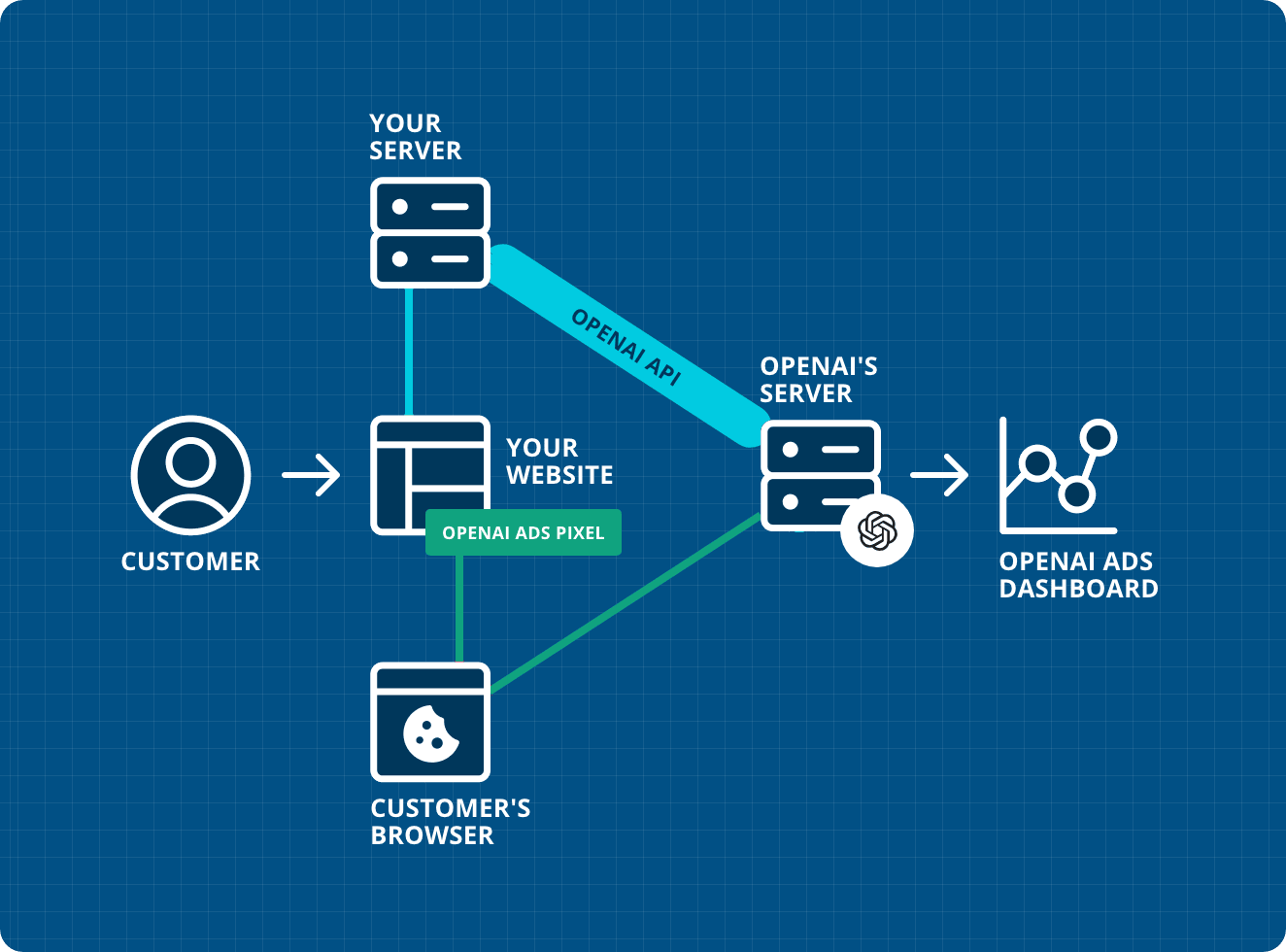
Customers interact with your Magento 2 store (product views, add to carts, checkout steps, purchases)
Server-side tracking captures the full event payload with 100% reliability
Secure data transmission to OpenAI occurs through the official Conversions API
Conversion data appears in your OpenAI Ads dashboard for measurement and optimization
The following diagram illustrates the seamless integration between your Magento 2 store, server-side processing, and the OpenAI Ads Conversions API:
Features of the OpenAI Ads Conversions API Addon
Event Tracking
- Server-side Purchase event delivery
- Server-side InitiateCheckout event tracking
- Server-side AddToCart event tracking
- Server-side ViewContent event tracking
Additional Events
- Server-side PageView event tracking
- Server-side Signup event tracking
- Test Mode that validates payloads against the OpenAI API without recording conversions
Powerful Integration
- Track selected events in conjunction with the frontend OpenAI Ads pixel — shared event IDs let OpenAI deduplicate automatically
- Directly and fully integrated into the Google Analytics 4 PRO extension
- Ability to send data to multiple OpenAI Ads pixel endpoints
Developer Tools
- Log functionality for in-depth debugging of events sent to the OpenAI Conversions API (var/log/openai-api.log)
- Built-in admin Log Viewer — explore API payloads without server access
- Option to track only specific customer groups
- Easy setup: all that's required is the OpenAI Ads Pixel ID and Conversions API Key
System Compatibility
- Compatible with Magento 2.3.x - 2.4.9
- Works with all Magento editions
- Supports multiple store views
Requirements for using the OpenAI Ads Conversions API Addon
To use the OpenAI Ads Conversions API Addon, you'll need the following:
- An OpenAI Ads account with access to your Pixel ID and a generated Conversions API Key.
- The OpenAI Ads client-side pixel configured in the Google Analytics 4 PRO extension (the addon reuses the same Pixel ID).
- The Google Analytics 4 PRO extension (version 1.17.3 or higher) enabled and configured.
HOW TO INSTALL
This extension is installed via Composer, which is the official and only supported installation method.
Step 1: Prerequisites
- Ensure your Magento version is compatible (2.3.0 - 2.4.9 and all Security Patches)
- Install on a testing/development environment first
- Set Magento to developer mode before installation
- Make sure you have Composer installed on your server
php bin/magento deploy:mode:set developer
Step 2: Access Composer Configuration
Head into the Downloadable Products section of your weltpixel.com account. This is where you'll be able to see your Composer Configuration Commands.
You'll need to have Composer installation enabled for your account. If you don't see the Composer Configuration Commands, please contact our support team.
Step 3: Configure Repository
Run the generated commands from your account. Example commands:
composer config repositories.weltpixel composer https://weltpixel.repo.packagist.com/your-id/
composer config --global --auth http-basic.weltpixel.repo.packagist.com token your-token
These commands will provide you access to the WeltPixel repository. Replace 'your-id' and 'your-token' with the actual values from your account.
Step 4: Install via Composer
Run the following command in your Magento root directory:
composer require weltpixel/module-ga4-openaiss
Step 5: Enable and Setup
Run the following commands:
php bin/magento setup:upgrade
php bin/magento setup:di:compile
php bin/magento setup:static-content:deploy -f
Step 6: Cache Management
Flush any caches:
php bin/magento cache:flush
Step 7: Production Mode
If your store was in production mode, switch it back:
php bin/magento deploy:mode:set production
Wooohooo! The extension is now installed on your Magento store! Congrats!
How to Upgrade the Extension
- Step 1: Run: composer update (for the package)
- Step 2: Run setup commands: php bin/magento setup:upgrade, php bin/magento setup:di:compile, php bin/magento setup:static-content:deploy -f
- Step 3: Flush cache: php bin/magento cache:flush
How to Configure the OpenAI Ads Conversions API Addon
Basic Configuration
Important Notice: To use server-side tracking you need an OpenAI Ads account with access to your Pixel ID and a Conversions API Key. The API Key authorizes every request, so server-side tracking will not authenticate without it.
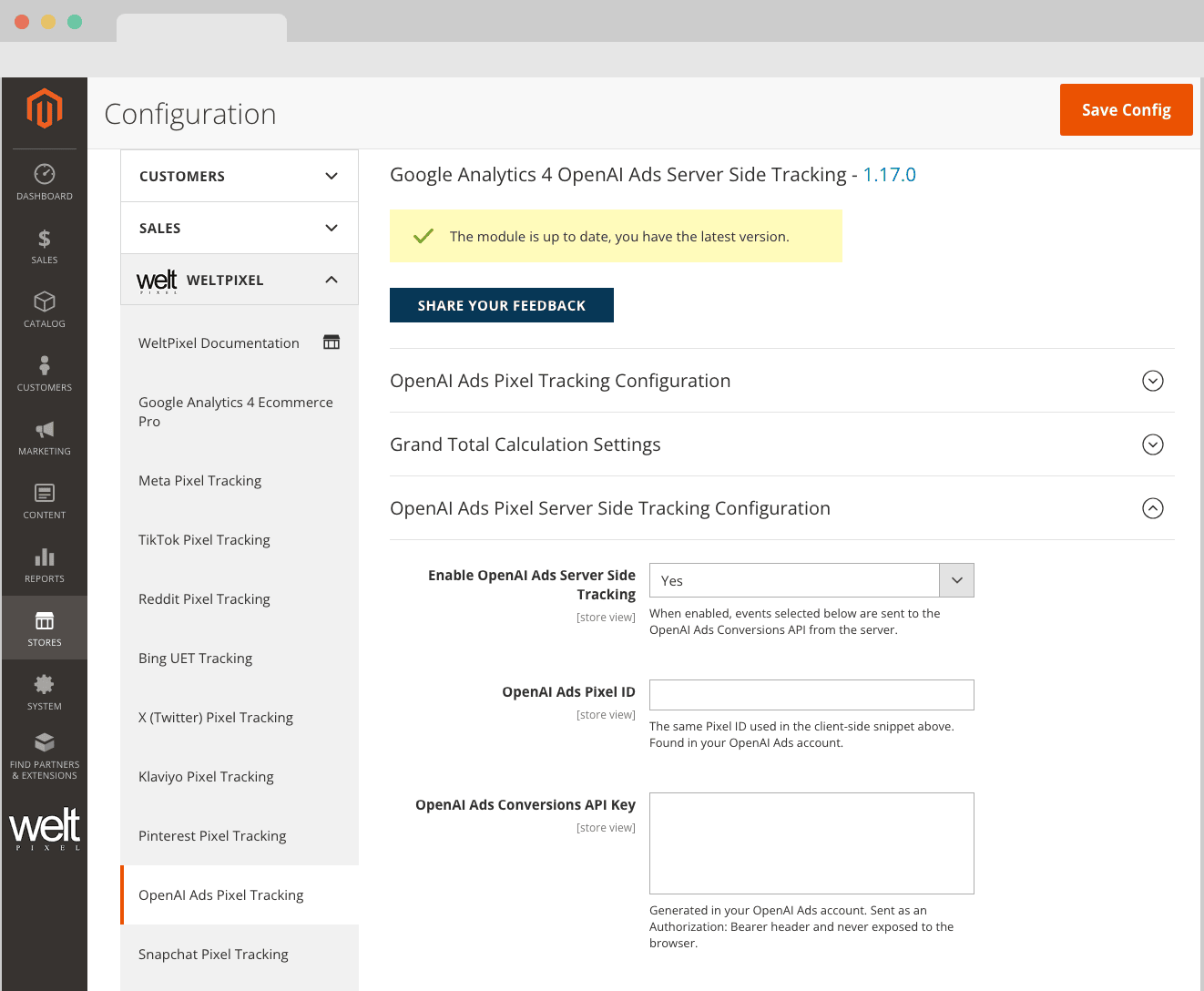
Admin → Stores → Configuration → WeltPixel → OpenAI Ads Pixel Tracking → OpenAI Ads Pixel Server Side Tracking Configuration
Enable OpenAI Ads Server Side Tracking
Toggle this to Yes to activate the OpenAI Ads Conversions API integration. Events selected below are sent to the OpenAI Ads Conversions API directly from your server.
OpenAI Ads Pixel ID
The same Pixel ID used in the client-side snippet configured in the section above. You can find it in your OpenAI Ads account.
OpenAI Ads Conversions API Key
Generated in your OpenAI Ads account. The key is sent as an Authorization: Bearer header on every request and is never exposed to the browser.
Track Events
Select the events you wish to send to OpenAI via the Conversions API. Available options are:
- PageView
- ViewContent
- AddToCart
- InitiateCheckout
- Purchase
- Signup
Note: Make sure the client-side OpenAI Ads pixel in the section above is enabled and configured with the same Pixel ID so browser and server events can be matched.
Advanced Configuration
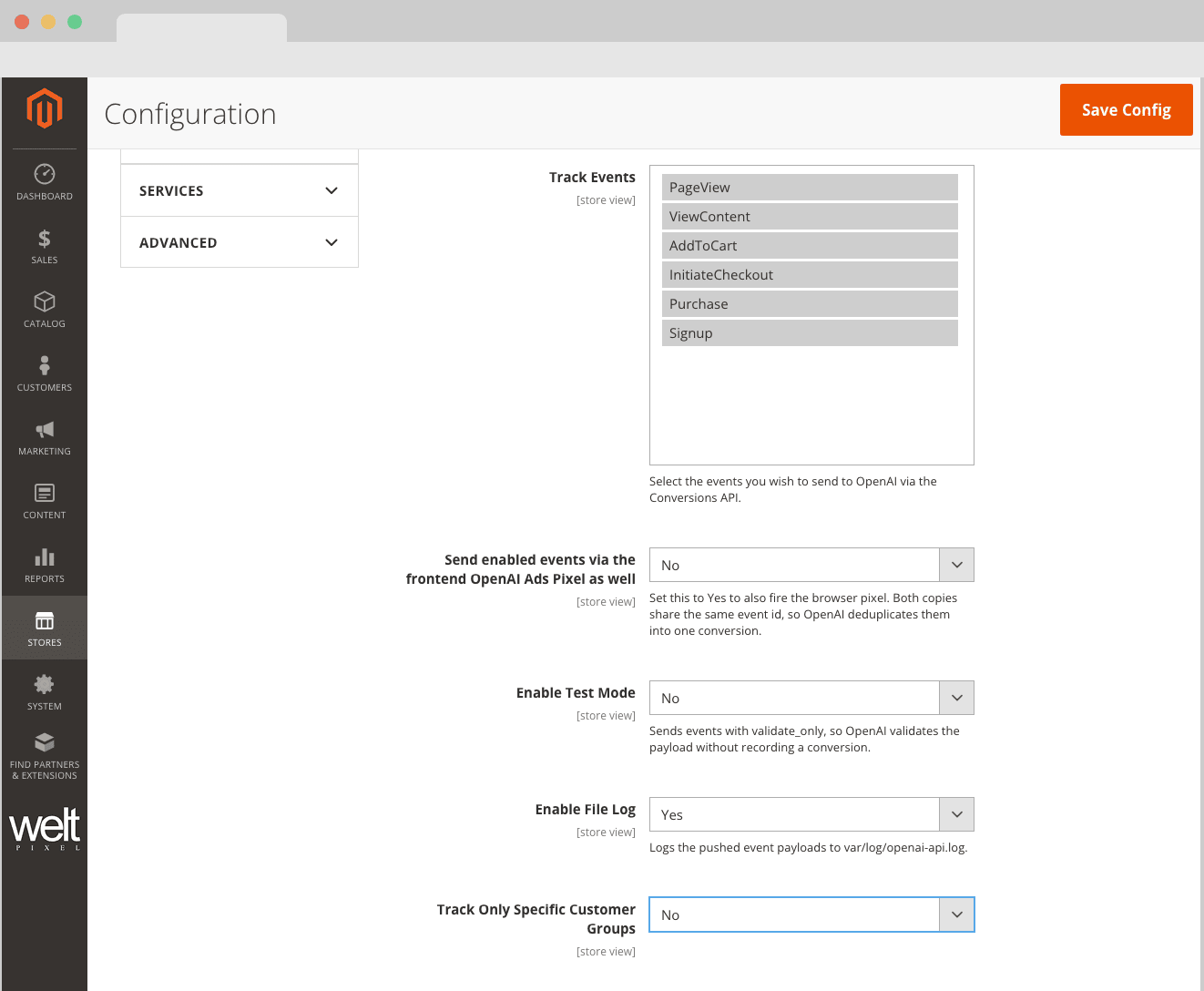
Send enabled events via the frontend OpenAI Ads Pixel as well
Set this to Yes to also fire the browser pixel for the selected events. Both copies share the same event ID, so OpenAI deduplicates them into a single conversion.
Enable Test Mode
Sends events flagged validate_only, so OpenAI validates the payload without recording a conversion. Ideal when checking the configuration without polluting production reporting.
Enable File Log
Enable the creation of a log file that shows the pushed event data. The openai-api.log file can be found in the var/log directory of your Magento 2 root. Logged payloads can also be explored directly in the admin via the built-in Log Viewer.
Track Only Specific Customer Groups
If set to Yes, only selected customer groups will be tracked by OpenAI server-side events.
Send To Multiple Endpoints
If set to Yes, you'll be able to add additional Pixel ID / API Key pairs, and the enabled events will be sent to each configured endpoint.
Support and Resources
Documentation
Access our comprehensive documentation in the Knowledge Base for detailed setup and configuration instructions.
Technical Support
Our dedicated support team is ready to assist you with any technical issues or questions you may encounter during setup and usage.
Regular Updates
Stay current with regular updates ensuring compatibility with the latest Magento versions and OpenAI Ads API changes.
Frequently Asked Questions
What is the OpenAI Ads Conversions API Addon?
The OpenAI Ads Conversions API Addon enables server-side tracking of customer events from your Magento 2 store to OpenAI Ads, the advertising platform for campaigns shown in ChatGPT. It provides accurate conversion data for measurement and campaign optimization.
Do I need the Google Analytics 4 PRO extension?
Yes, this addon requires the Google Analytics 4 PRO extension (version 1.17.3 or higher) to be installed and configured on your Magento 2 store.
What events can be tracked?
The addon supports server-side tracking of PageView, ViewContent, AddToCart, InitiateCheckout, Purchase, and Signup events.
Does this work for ChatGPT ads campaigns?
Yes. OpenAI Ads campaigns run inside ChatGPT, and this addon reports your Magento 2 store's conversions to OpenAI server-side, so campaign performance is measured accurately even when browser tracking is blocked.
Change Log
Version History
- Security release: 1.17.5 is a catalog-wide security and hardening release for every WeltPixel extension, published alongside Adobe's September 2026 Magento security bulletins (APSB26-138 and APSB26-146, the actively exploited CVE-2026-75650). Upgrading is strongly recommended for every store.
- WeltPixel Backend (shared by every WeltPixel extension): the licence lookup now uses bound database parameters instead of building its query from the module name, TLS certificate verification is enforced on the licence activation call, and the module information and cron status pages escape their output.
- Fixed the public server-side tracking endpoint accepting any order or cart id. It now only sends events for the current session's own order or cart, so a remote caller can no longer force or duplicate an OpenAI Ads event for another order, and lookup errors are no longer reflected in the response.
- The posted event name is validated as a string before use, so a malformed request returns a generic error instead of a PHP error and a report file.
- Fixed an issue where customer matching data was silently discarded. The Conversions API user object was sent with the wrong field names, so OpenAI accepted every request but dropped the identifiers inside it. All identity and location fields have been corrected, so matching now works as intended.
- Fixed the guest visitor identifier, which was based on a PHP session ID that changed on every visit and never matched the browser pixel. It is now derived from the customer ID, falling back to the email hash, so the browser and server layers send the same value.
- Fixed admin-created and imported orders being reported as web conversions with a made-up source URL. They are now reported as offline with no source URL, while storefront orders pushed later by cron correctly stay web.
- Fixed silent failures during event building and the cron purchase push, which are now written to the OpenAI Ads log for easier troubleshooting.
- New Feature: Phone number, first name, last name and region are now sent, normalized to OpenAI's own matching rules to improve match quality.
- New Feature: Hashed identifiers a guest provides at checkout are now replayed on their later browsing events, which previously carried no identifier at all. Only hashed values are stored.
- New Feature: Added an anonymous visitor identifier for guests, sent alongside the identity-based value so a guest who later signs in keeps a single profile. Disabled by default.
- New Feature: Added an option to report denied-consent events with OpenAI's opt-out flag, so the conversion is still counted while the visitor is excluded from user-level personalization. Confirm this is permitted for your store before enabling. Disabled by default.
- Initial extension release. This product is an addon and requires a version equal to or higher than 1.17.3 of the Google Analytics 4 PRO extension to be used.
Future updates will include additional features and enhancements to the OpenAI Ads Conversions API Addon.